How to connect and optimize CRM and project management? Imagine combining all the key features of CRM software with simple, efficient task management — that’s exactly what Nozbe can do.
As a “team collaboration app,” it can cover two areas at once: CRM and project management in one place, with a simple interface and under a single subscription.
CRM (Customer Relationship Management) is a system, strategy, software, and tasks aimed at managing relationships with current and potential clients.
Such a definition often brings to mind complex systems used by sales, support, or marketing departments. However, many businesses don’t need complicated tools — they need order, a history of interactions, clear processes, and effective team communication.
This is where Nozbe comes in. Although formally a project management app, a task management tool, and a team collaboration platform, in practice it can effectively serve as a CRM.
Benefits of Integrating CRM and a Project Management App
Integrating a CRM with project management software saves time, automates tedious tasks, and allows you to focus on real business growth. But how does this work in practice?
1. Everything in One Place
Switching between multiple systems leads to scattered customer data, missed updates, and duplicated work. By combining CRM with a project management app, everything — from customer interactions to project details — is centralized.
Example: An e-commerce team tracks customer inquiries, orders, and invoices in one system, preventing miscommunication and delays.
2. Faster Project Execution
Time is money, and delays cost both in money and reputation. Combining CRM with a project management app allows teams to assign tasks and set deadlines, reducing bottlenecks and ensuring punctuality.
Example: A construction company manages a project from initial preparations to signing final acceptance documents and coordinating on-site work in a single system. Everything is transparent and accessible.
3. Increased Customer Satisfaction
Clients want updates — just not 20 emails a day. An integrated CRM and project management system gives them controlled access to progress, reducing unnecessary back-and-forth while maintaining transparency.
Example: A marketing agency allows clients to track campaign status in real time by sharing project access, eliminating the need for frequent status meetings.
4. Better Team Collaboration
Sales, marketing, product, and customer service teams often work in silos. When CRM and project management systems are combined, all teams work with the same data, ensuring smooth handoffs and fewer missed opportunities.
Example: A sales team can easily transfer a signed contract to the implementation team, reducing onboarding friction.
How CRM and Project Management Should Work Together
CRM and project management should work hand in hand so that all work related to a client — from initial contact, through the proposal, to execution — is organized in one place. CRM collects client information, records interaction history, and helps track sales stages, while project management tools allow you to break work into specific tasks, assign them to team members, and monitor deadlines. Combining both elements ensures small businesses don’t lose information, respond faster to client needs, avoid chaos, and easily check the stage of each client and what still needs to be done to close a sale or complete a service.
Let’s look at the areas under CRM (Customer Relationship Management) and see how Nozbe can help manage them.
Contact and Data Management
Why is this important in CRM? Every business needs a place to store client contact information, log interaction history, gather documents, and have full context of collaboration.
- Creating and managing a client database.
- Storing interaction history, transactions, and client communications.
How to do it in Nozbe?
In Nozbe, you can represent clients as projects or tasks. In the comments, you can record the entire collaboration history, emails, files, documents, and notes. Important comments can be pinned, and phone numbers and email addresses remain active.
Option 1: One client — one project, useful for large clients or if your company handles only a few clients at a time.
Option 2: One client — one task. Create projects for specific types of clients, projects for clients for the current year, or projects for clients by region — and within them, tasks corresponding to each client.
In the comments, you can log the interaction, transaction, and communication history. Comments are chronological from oldest to newest. You can list client contact information in the first comment.
Saved email addresses are immediately clickable, opening the email app.
Saved phone numbers like tel:1234567890 (no spaces) are also immediately active for calls.
You can pin comments with key information to highlight them and hide all unpinned comments for a cleaner view.
Sales Process Management
A CRM must support sales funnels and monitor status.
- Managing sales funnels and stages.
How to do it in Nozbe?
You can create a project with sections corresponding to funnel stages and drag tasks between them. Tags help filter clients by status or region.
If you create a project and divide it into sections corresponding to sales funnel stages, you can record individual orders, clients, or leads as tasks and drag them between sections to show the team what stage each order, lead, or client is at.
You can also use tags to mark stages or progress with a client. Create tags for different funnel stages or customer service, e.g., “1st email sent,” “Pending” “Meeting scheduled,” etc., and assign them to clients/leads/orders.
With Nozbe’s search and filtering tools, you can view only tasks (clients) with a specific tag, two tags, or clients in a given region at a specific stage, assigned to one of your employees.
You can create tasks for colleagues related to a specific client and link these tasks in the main task containing the client collaboration history. Even if a task is completed and archived, the link remains visible, allowing you to check what was done.
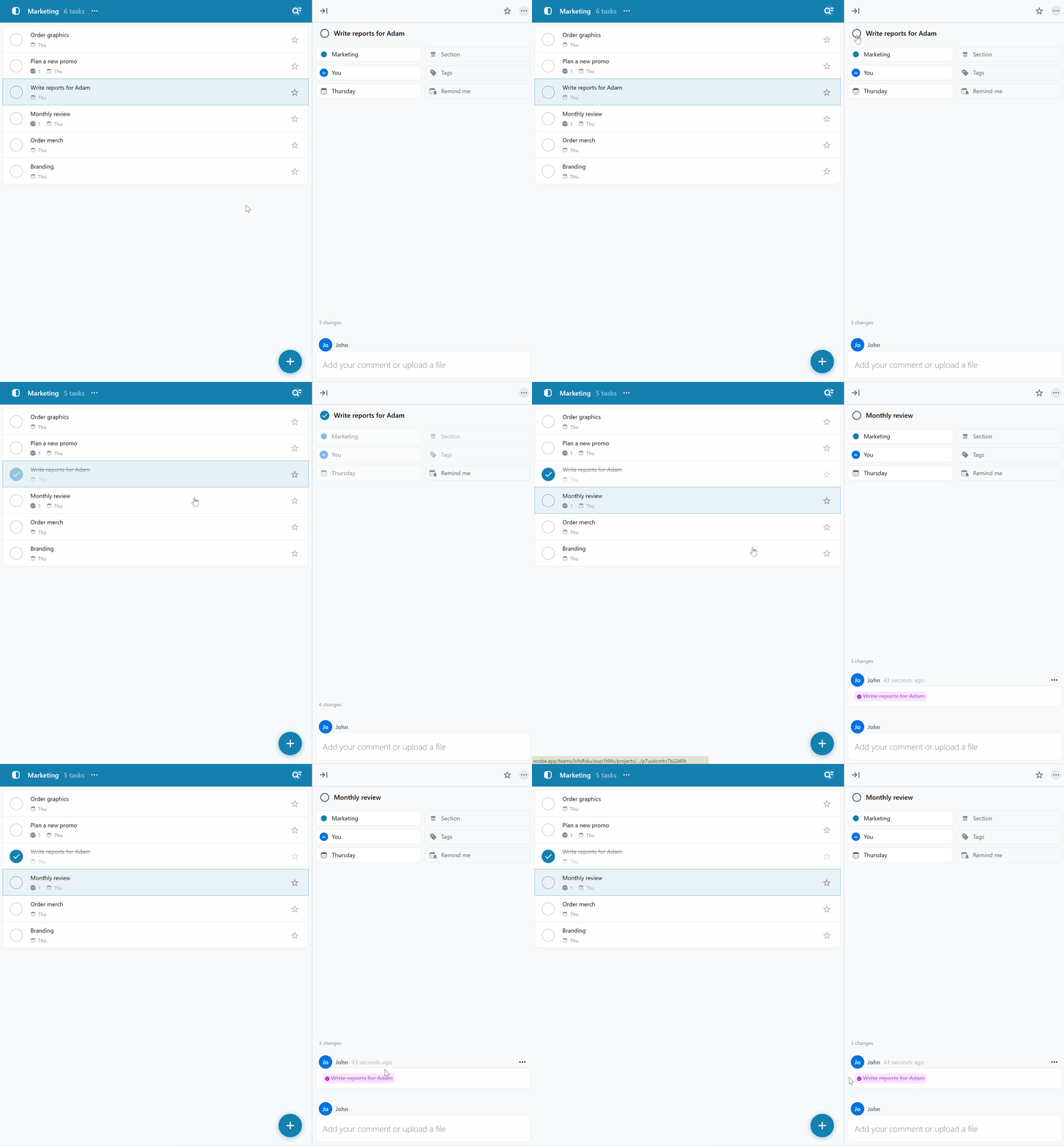
A CRM should allow task assignment, deadline tracking, and full visibility of team activity.
Nozbe, as a team collaboration app, lets you delegate tasks, track deadlines, and view a clear history of task handoffs.
Planning and Organizing Sales and Support Work
- Tracking transactions and proposals.
- Planning and monitoring sales activities.
How to do it in Nozbe?
You can keep all client work in a single task using the “task ping-pong” method — first, employee A works on the client’s task, then transfers it to employee B. Once B completes their work, the task can be returned to A or handed off to another team member responsible for the client.
In the task history recorded between comments, everyone can see the task’s journey and what was done and when.
Automation
Good CRMs automate processes to ensure nothing is missed.
- Automation of marketing and email campaigns.
- Automation of business processes such as order fulfillment.
How to do it in Nozbe?
Nozbe offers project templates, checklists, recurring tasks, and reminders to create a solid workflow, e.g., for client acquisition.
A project template allows you to create an entire procedure, define which employee is responsible for what, and which task should occur within what time period after the previous task (using the “Relative Date” option). Once a project is launched from the template, all tasks with appropriate due dates will be distributed to the appropriate employees.
With recurring tasks, reminders, templates, and checklists, where each point links to specific tasks corresponding to action/collaboration steps, you can streamline your work and ensure reliability and punctuality.
Customer Support and Service
Customer service requires fast response and full history access.
- Streamlined support through access to history and data.
- Client self-service options (e.g., placing orders online).
How to do it in Nozbe?
Nozbe lets you add emails to tasks, store documents, and record all agreements in one place.
If you consistently log all stages of client communication in comments:
- their requests,
- issues,
- changes in cooperation terms,
- upload documents, files, photos,
- and even emails from that person
…you’ll have the entire history in one place — showing clients that you value them, know them, and work methodically.
For online orders, you can add emails to a specific task or project to receive notifications, so whenever someone places an order, a new task appears in the project (see example.
Analytics and Reporting
A CRM provides insight into sales activity.
- Analyze customer behavior and sales results.
- Generate real-time reports, e.g., on sales efficiency or KPIs.
How to do it in Nozbe?
Tags let you track the number of tasks at different stages.
You can export any project as a CSV table or report.
Using “Needed” and “Spent” time parameters, you can record how much time your company spent on each client.
Task and Project Management
- Plan, assign, and track the employees' tasks.
- Manage projects and coordinate team activities.
This is the most obvious part — in Nozbe, you can immediately assign tasks and deadlines for specific clients. You can assign clients to specific employees and monitor their progress.
In the “Workspace Members” view, you can see how many tasks/clients are assigned to each team member.
In the calendar view, you can see the team’s workload by day.
In Nozbe, everyone sees what needs to be done, by whom, and by when.
Integration
Customer correspondence must be accessible to the whole team.
Nozbe allows you to forward any email as a task or comment so that communication is centralized.
- Integration with other systems such as telephony, email, or e-commerce.
Email integration in Nozbe lets you send client correspondence to specific tasks or projects — the whole team can then see the history and client issues/questions.
Interesting integration created via Zapier:
Facebook/website form → Google Sheet → Zapier → Nozbe
When a customer fills out a registration form (on a website or from a Facebook ad), the data first flows to Google Sheets and then to Zapier. In Zapier, you need to build a description in a logical order, for example:
- first name: [field from the form]
- last name: [field from the form]
- needs: [field from the form]
And this is what gets added to the comment section of the Nozbe task dedicated to a given customer/lead/prospect – right at the beginning of the comment feed!!!
Example Project Structure for a Company Managing Google Business Profiles
A practical sequence of statuses and short comments that might appear in Nozbe when managing a client’s Google Business Profile.
You can use this as a template of stages + example comments a team would actually write.
New Lead / Initial Inquiry
Tag (status): New Contact
“Client submitted the form — issue: inconsistent profile data, no photos, no posts. Asking for a quote.”
Offer Sent
Tag (status): Offer Sent
“Offer sent by email. Includes: audit, data optimization, adding photos, weekly posts + review monitoring. Waiting for approval.”
Offer Accepted / Onboarding
Tag (status): Contract & Access
“Client returned signed contract. Provided access to Google Business Profile. Added login/technical info + document links in the comment.”
Profile Audit
Tag (status): Audit in Progress
“Checked NAP data, hours, photos, categories, and keywords. Attached full audit PDF. Task assigned to optimization team.”
Profile Optimization
Tag (status): Optimization
“Updated business description + categories. Added 12 client-provided photos.”
“Can we use photos from their Instagram? No reply yet — sent question to client.”
First Post Published
Tag (status): Content Publishing
“First post published: New Offer + Photo — next posts scheduled for the following 4 weeks.”
Review Monitoring
Tag (status): Monitoring / Review Responses
“Two new reviews appeared. Responses added. One needs consultation — client requested a neutral response draft.”
Monthly Report
Tag (status): Report Sent
“Monthly report sent: views +23%, call clicks +14%, direction requests +19%. PDF attached.”
Additional Tasks
Tag (status): Additional Tasks
“Client requested new photos — assigned to graphic designer. Deadline: 7 days.”
Ongoing Maintenance (Recurring Task)
Tag (status): Monthly Maintenance
“Recurring task set for every Monday: check reviews, publish post, update photos if needed.”
Escalation / Issue
Tag (status): Blocked / Needs Client Action
“Google suspended the profile — likely automatic algorithm. Submitted appeal + requested storefront photo from client.”
End-of-Month / Contract Renewal
Tag (status): Collaboration Renewed
“Client renewed maintenance for another month. New goals added: more product photos + posts twice a week.”
List of Tags / Sections Used in Project
- New Client
- Offer
- Contract & Access
- Audit
- Optimization
- Content / Posts
- Review Monitoring
- Reports
- Additional Tasks
- Ongoing Maintenance
- Issues / Escalations
- Collaboration Summary

Example Project for a Service or Sales Company
🙋 Client Acquisition and Support — Recurring Project
In such a project, you can list all tasks for acquiring and supporting a new client. This will be your template for the future — in Nozbe, you can save it and generate a new project from the template every time a new client appears or it’s time to acquire new leads.
Section 1: Acquisition
- Record client contact information
- Send first email
- Send follow-up email
- Contact via LinkedIn
- Schedule a phone call
Alternatively:
- Forward inquiry email to Nozbe
- Call client to clarify details
Section 2: Proposal / Presentation
- Prepare a proposal that meets client needs
- Send proposal (+ update status here)
- Schedule a presentation meeting
Section 3: Contracts and Payments
- Prepare contract
- Send contract for signature
- Save contract in appropriate folder
- Prepare proforma invoice
- Confirm payment with accountant
- Send invoice to client
Section 4: Collaboration / Order Fulfillment
- Create production orders
- Purchase materials
- Execute the order
- Prepare shipment
- Ship package
- Inform client about shipment
- Maintain client correspondence history in case of issues
Section 5: Client Satisfaction and Future Cooperation
- Request Google review from client
- Add client to appropriate mailing list
Summary
Nozbe is a task management app, project management app, and team collaboration app that in practice works perfectly as a lightweight, fast, and effective CRM.