

The most important things in Nozbe are always on the left side – in the sidebar. This is where you kick off your workday, jump between projects, and check what needs your immediate attention. That’s why you can now tweak it to match your exact daily workflow.
There’s no such thing as a one-size-fits-all layout because everyone works differently – and that’s exactly why the Nozbe sidebar is now fully customizable.
You can pin views as tiles, rearrange them, add custom colors, use Favorites, and sort your projects into groups.
Your key views in one place
At the very top of the sidebar, you’ll find your tiles. By default, when you create a new workspace, you’ll see two main views: Priority and Incoming.
These give you instant access to what matters most right from the get-go.
Right below that is your Active Projects list, followed by the More menu, where all your other views live.
In older setups – like when you migrate data from Nozbe Classic or join someone else’s workspace – you might see more tiles on your screen, sometimes 4 or even 6. But from now on, you get to decide exactly what stays within finger’s reach.
Pin whatever you need as a tile
You can pin almost any view in Nozbe as a tile:
- A project
- Calendar
- Messages
- Activity
- Single Tasks
- Templates
- Individual tags or your entire Tags list
- Individual users (e.g., yourself, so all your commitments are just a tap away)
If it’s important to you, it belongs at the top of your sidebar.
How to pin a tile
Open the view you want, click the three-dots menu (⋯), and select the Pin as tile option.
The view will instantly pop up in the top section of your sidebar.
Arrange tiles your way
You’re also in full control of your tile order.
Simply drag and drop any item to change its position.
You can organize them according to your own logic – for instance, moving from daily deep work, to communication, and finally to long-term planning.
Colors that help you stay oriented
Every tile can have its own color. Just open the menu (⋯), select Color, and pick the shade that best fits your workflow.
If you pin a specific project as a tile, it will automatically inherit that project’s color.
It’s a simple, visual trick to help you recognize your context much faster.
Don’t need a tile anymore? Just unpin it
If you decide a certain view doesn’t need prime real estate at the top anymore, removing it from your tiles is a breeze. Just uncheck the Pin as tile option in the menu.
Don’t worry – the view isn’t gone. You can always find it under the More menu at the bottom of the sidebar.
Favorites – quick access without the clutter
Not every important view needs to be a tile.
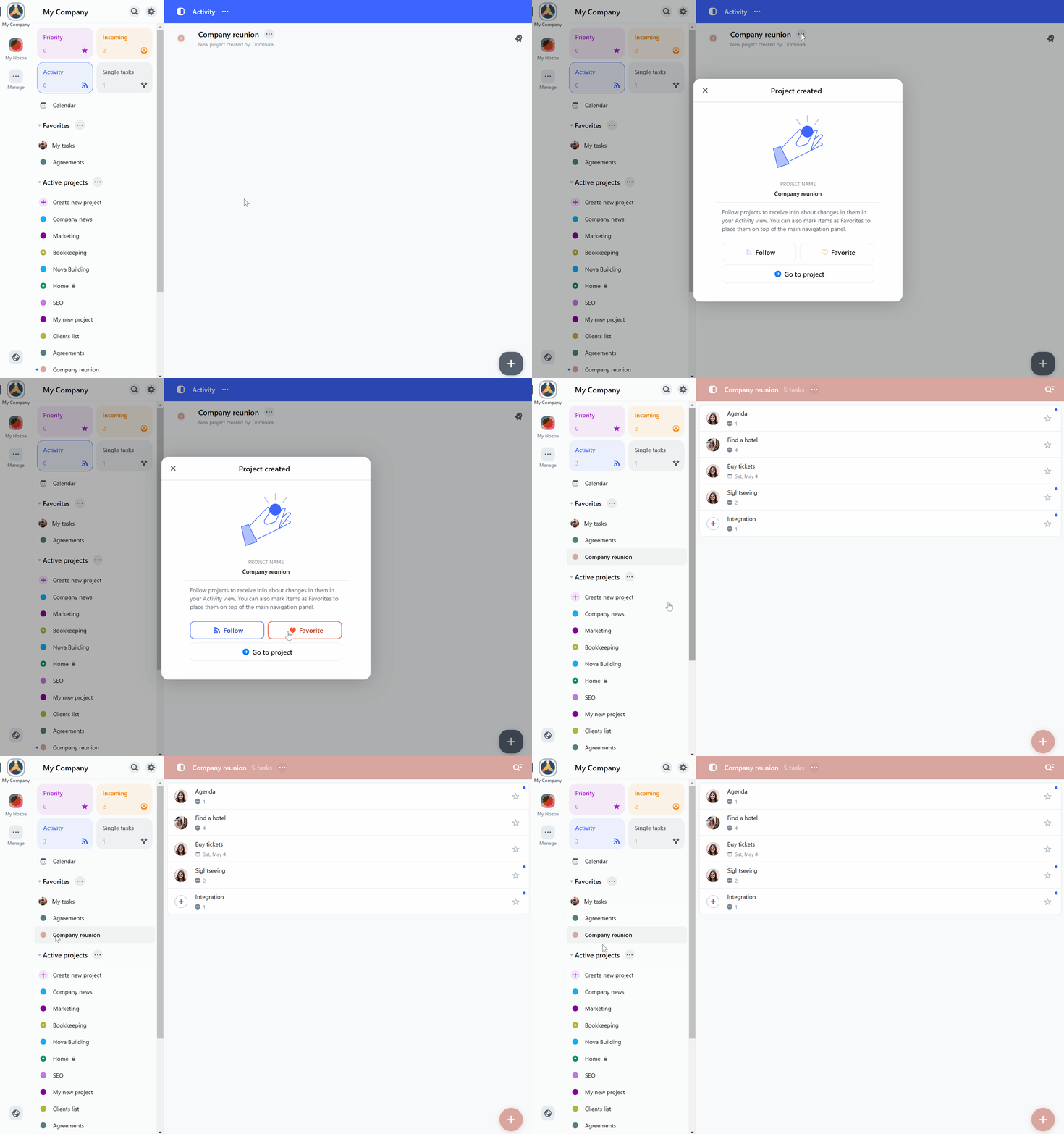
You also have Favorites at your disposal, where you can add:
- Projects
- Tags
- Users
This is the perfect spot for things you want quick access to, but don’t necessarily want taking up space at the very top of your interface.
Project groups – organization on a larger scale
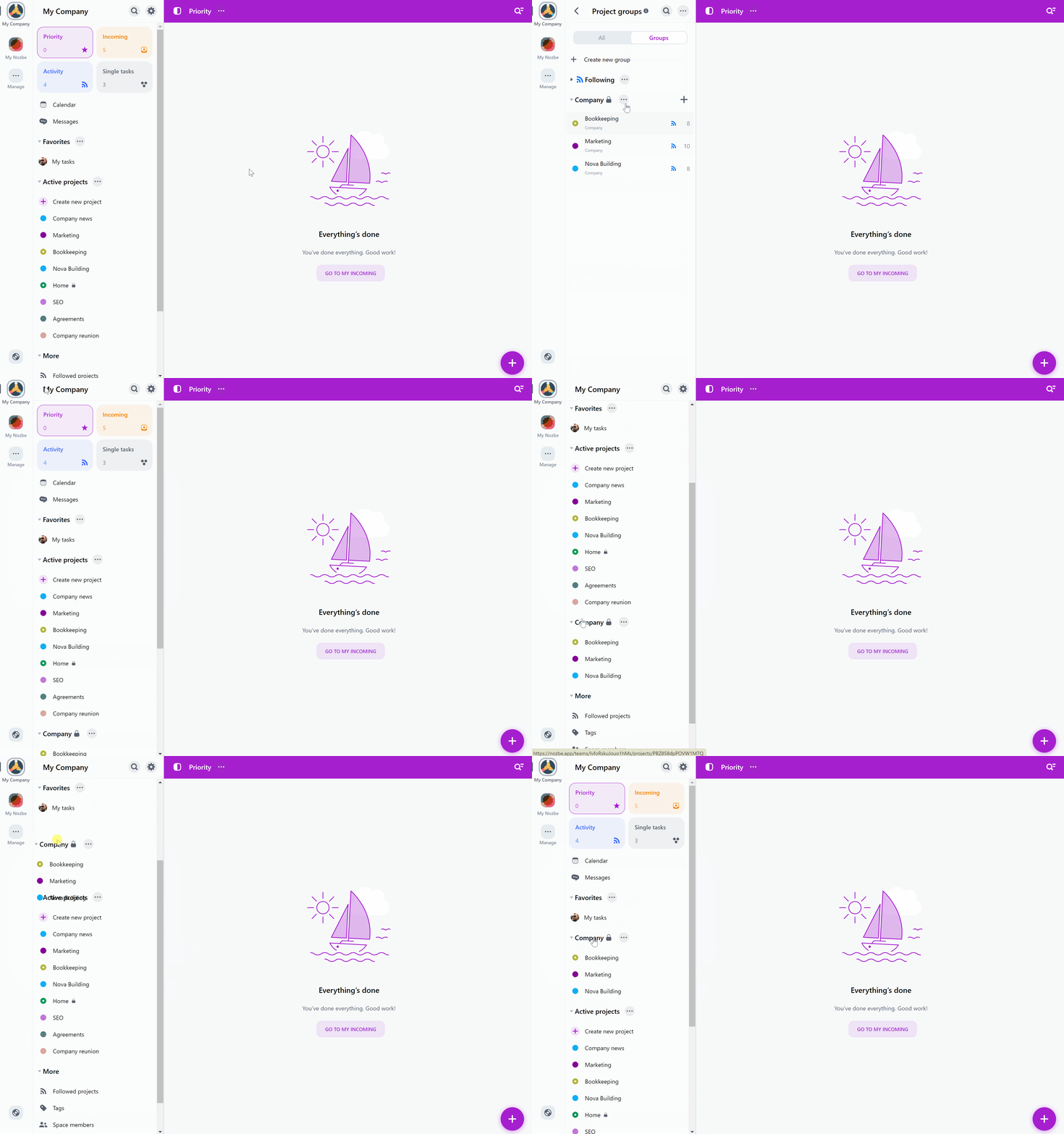
If you’re managing a ton of projects, you can sort them into groups – pretty much like organizing files into folders.
In the Active Projects view, go to the Groups tab and click “+ New group.”
Then, simply select the projects you want to bundle together.
You can make the group visible in your sidebar by clicking the three dots next to its name and selecting Show in sidebar.
Additionally, you can:
- Sort the projects inside a group alphabetically
- Reorder them manually using drag-and-drop after selecting the “Custom order” option
Tweak your look in Settings
Customization goes way beyond just tiles. Under Settings > Appearance, you can also:
- Choose between a light or dark sidebar
- Enable minimalist tiles (this keeps the tile background neutral, making only the icon colorful)
- Turn on the dense layout to squeeze more items into the sidebar without having to scroll
The exact same sidebar on desktop and mobile
The sidebar works seamlessly across the web, desktop, and mobile apps.
This means that once you set up your perfect configuration, it automatically syncs to your phone.
All you have to do is log in – for example, by quickly scanning the QR code in the app.
See which sidebar style works best for you
A well-configured sidebar is so much more than just a cosmetic interface tweak. It’s a shortcut to navigating your dashboard faster and cutting down on daily clicks.
It’s well worth taking a few minutes to tailor it to your needs – and then letting it do the heavy lifting for you.

