

Nozbe? Because we want you to Be Naturally OrganiZed!
30 September 2015
Nozbe Reunion Fall 2015 - making your productivity app even more awesome
21 September 2015
Psst! Here’s my productivity secret: see how I get things done with my assistant
11 September 2015
As you know, every Nozbe PRO account is actually “2 in 1”, meaning, you get 2 accounts for the price of 1. Yes, you can use Nozbe on your own, but you can also go to the “Team” section and put the email address of your partner and create an additional account for them, completely free.
Do you want to know how I work with my assistant? I can’t do everything alone.
Nozbe use: The logic and secrets between sharing team and projects
28 August 2015
Sharing projects and teams is one of the most confusing matters to our users.
Definitions
For safety please allow me to start with definitions. For some users this is not a secret as it can be read about on Nozbe Help Page. The matter, in fact, is so simple that it seems confusing to many and is related to Nozbe’s history.
Inviting someone to your Nozbe team DOES NOT mean inviting them to your projects. Statement seems logical enough, right? Well, it is like inviting a friend to a party. You invite him over, yet that does not mean automatically he will or should get involved in all conversations and activities going on at it.
So what’s the deal?
Once you invite someone to join your team… what happens?
-
You see them on your “team members list”
-
You pay for their access to the service BUT 3. you neither give them access to all your projects, nor you get access to all of their projects.
Once you share a project… what happens?
You grant them access to all data within that project but nothing else.
A sneak peek into iOS 9
27 August 2015A few months ago, we’ve decided to double down our efforts on Apple platforms. Many of us at Nozbe are happy users of Macs and iOS devices, and so we wanted to bring more features, improvements and refinements to our apps there.
You might have noticed the results over the last few versions. We released one of the first apps for Apple Watch, then redesigned it just two months later. And in the lastest version, Mac users got a Today widget (just like the one we have on iOS).
But we’re just getting started. We have a ton of improvements in the pipeline. Here’s just a few examples of what we’re working on for the iOS 9 release in September:
Multi-tasking on iPad
If you’re on an iPad, you’ll love this one. In iOS 9, you can swipe your finger from the right edge of the screen to see your tasks in Nozbe. You don’t have to leave the app you’re using, go to home screen or double-tap the home button. Just swipe from the right and you can slide Nozbe over other apps. This is useful when you just want a quick glance at your priority tasks, or when you want to quickly add a task to your inbox.
It gets even better if you’re using iPad Air 2. After sliding Nozbe over, you can drag the separator to enable split view. This way, you can use Nozbe side-by-side with another app. For example, you can compose an email while looking at your notes in Nozbe.
How to learn a foreign language with Nozbe
17 August 2015
Did you know that Nozbe can help you build a new habit? Let’s take learning a foreign language as an example. Who wouldn’t like to speak an extra one, huh? Say… French…
Before you start
Scientific researches have found certain mechanisms that rule the process of creating a habit. Based on that, we can formulate a couple of tips that will help you take off.
-
Set a big goal - have your vision of what you want to achieve and why. Talk to yourself for a while and make sure that learning a new language is something you really want and need.
-
Make it so easy you can’t say no. — Leo Babauta - start approaching your big goal with tiny steps. Try setting the tasks easy enough so that you can get it done without motivation (that is kind of moody and differs depending on a day, weather and other circumstances.)
-
Building sticky habits is a lot easier if you make use of the routines you already have rather than try to fight or modify them. It’s good to build your plan around triggers that will let you know that it’s time to work on your habit, e.g.: after I get up and have a glass of water I learn French.
-
When you fail, get back on track as quickly as possible. Don’t worry! Missing your habit once or twice, no matter at what stage it occurs, has no serious impact on your long-term progress. Instead of trying to be perfect, be good and compassionate to yourself. You’re doing a great job!
OK. Once you know the rules, let’s get to work :)
How to workaround lack of chain tasks - Nozbe tip
12 August 2015
Chain tasks… what are they?
Quite often we come across a very particular set of tasks. I like to call them chain tasks, as they act as if they were a silver chain, one following the other.
To put it in simple terms, chain tasks are a group of consecutive tasks that need to be done in certain order and most often task B, C, D can’t be done without having A completed.
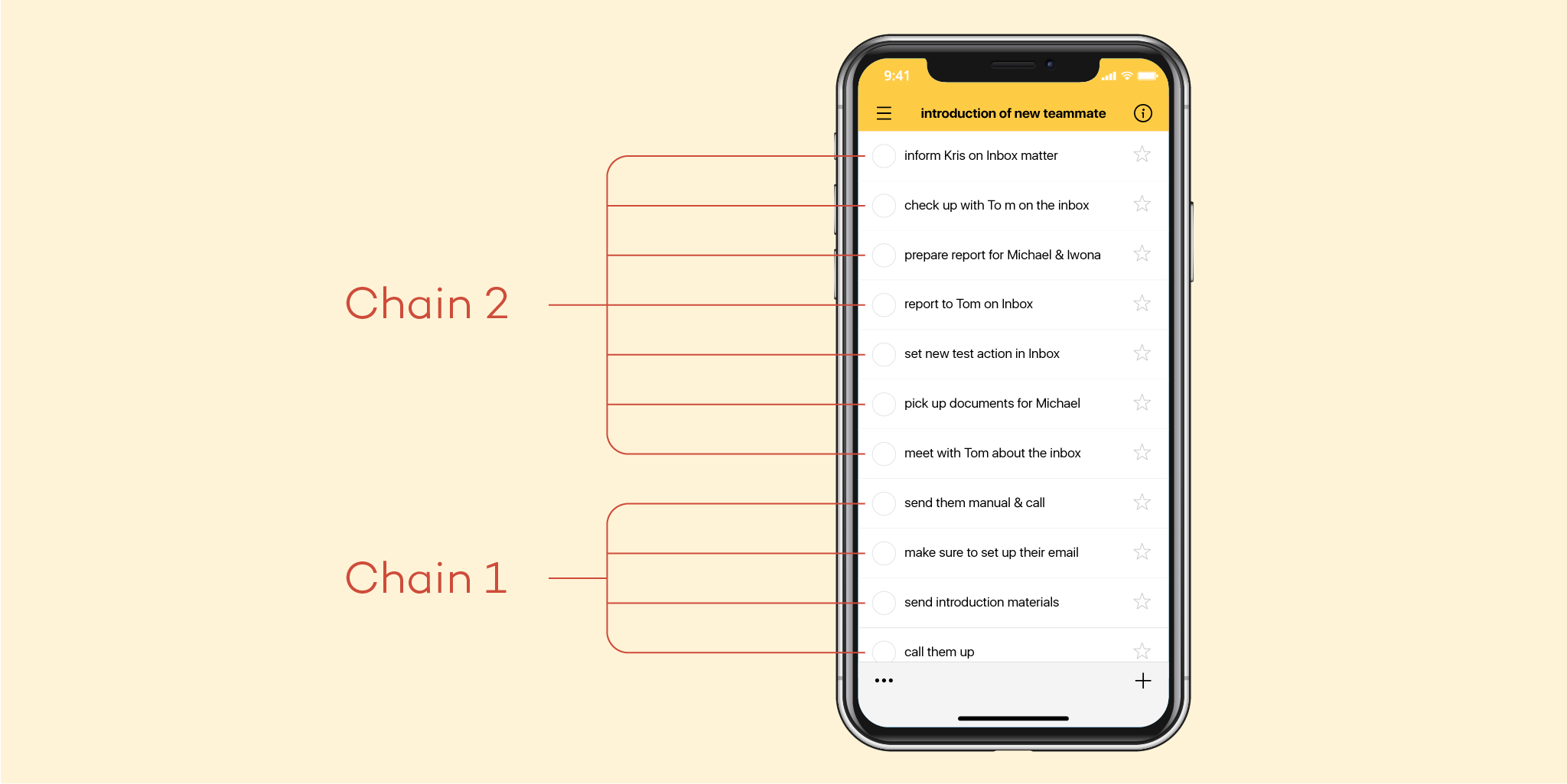
What can be done with them in Nozbe?
It is true that Nozbe does not have a direct/to-the-point option for them. Having been asked about them frequently, and having tried my best to work around that lack, I came up with and idea, that although not ideal, seems to work well.
The Podcast - a geeky productivity podcast with Nozbe team members: Michael and Radek
11 August 2015
Nozbe 2.2 with Google Drive and Mac widget
10 August 2015
How I work with my assistant, using Nozbe, Gmail and Dropbox
6 August 2015
Hi, here’s Michael, Nozbe founder. I hired Magda two years ago for a position of an editor in the Productive! Magazine. As this wasn’t a full time job really, I also asked her if she could temporarily become my assistant. I’ve never had an assistant before and I wanted to learn to work with one. She said yes, and two years later she’s still helping me get things done. In this post I want to share how we work together. I hope this might be helpful to anyone thinking about working with an assistant or searching for ways to improve their collaboration. We’re actually thinking about recording a short video about it, soon. Here’s how we work together with Magda:
Magda manages my email
Although we said farewell to email in Nozbe long time ago, we can’t prevent the whole world from using it :-) I receive hundreds of emails every week and it is Magda who takes care of them.
How?
At the beginning of our cooperation, I set up all my Gmail accounts so that every single new message is being forwarded to one email address that we call “CEO”. I’ve also given Magda an access to the “CEO” account - in Gmail, it is called “delegated account”. This way we both have access to my emails and we both can receive and send emails from the “CEO” address.
There are various emails coming to that shared Gmail inbox:
- personal
- business - individual
- personalized business emails sent by companies to multiple receivers
- automated invoices, billings, account statements and other finance-related notifications
- etc.
Magda archives the emails that don’t require any reply or are just advertising; she sends regular finance-related messages to a dedicated notebook in my Evernote. If an email is not too personal and Magda’s competence is enough to reply to it accurately, she does it.
Now, the most important: messages that require my reaction, reply, confirmation or simply advice. Here’s how we deal with them through Nozbe: